


























One of the extremely popular recently emerged applications that features voice as well as chat platforms to the users is Discord. It enables you to establish small or large chat servers that would help you for your gaming purposes, interacting socially, and also for making business groups. But did you know one of the most important features of Discord?
There are perhaps many people who are not yet aware of the video calling feature of Discord. Yes, Discord allows you to do video conference calls along with screen sharing ability. You can have a live video chat with nine other people while simultaneously sharing your desktop screen. There is no such requirement of installing any additional programs. Moreover, you will not have to pay any additional charges for the activation of this feature.
Screen sharing proves to be extremely beneficial for meeting purposes. If you were unknown to this feature or have been browsing to activate this on your desktop, then you are at the right place. Here we go with the ways of how to screen share in the Discord server.
Setting up Discord screen share and video call
You have to make sure about the fact that your video and audio hardware are set up properly on your Discord client. Connect the webcam and microphone that you are desiring to use for the video chatting purpose.
Video/Camera Setting
We will now go through the process step by step on how to enable the video/camera settings.
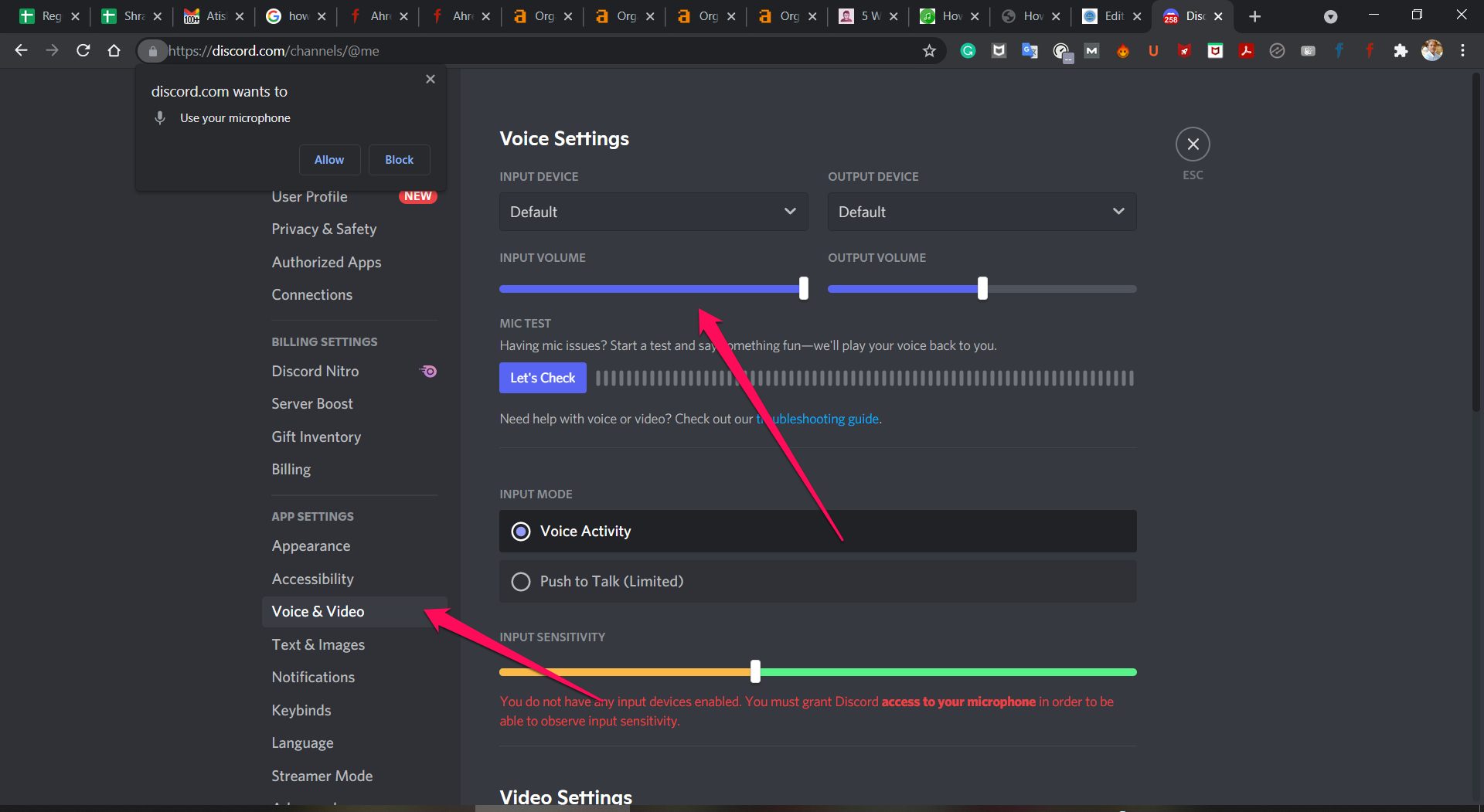
- In the lower left corner of the screen that you see when you open Discord beside your username is a cog icon. That is the setting icon. You have to click on that.

- Find App Settings. Now select Voice and Video.

- Go to the Video Settings section and from the drop down menu select video camera. On the right you will find the option to Test Video where you can make sure that everything is in order.

Web Browser Additional Steps
It may be the case that you are using Discord via the browser. In this case you have to enable the access to the camera from the popup your browser offers. In the popup you will be asked to allow whether you want to give permission to the microphone and the camera to work. If you want to give access to the microphone or the camera click on the allow button.

This will enable Discord to use the microphone and the camera of your device as and when required and everything will run smoothly.
One it is complete you can easily share your screen on Discord.
Sharing your Discord screen on desktop
Now you have successfully set up everything. So we will process the steps of how to properly share your screen.

- First, go to the server where you want to share your screen.
- In the bottom, you will find video and screen, select screen.
- Now choose the screen that you want to share with the people.

- Adjust the quality of the video as per your wish.

- Check if everything is at the desired position and when you are sure click on Go Live to start the screen sharing.

This process can be followed by people using Mac, PC or a webpage.
Sharing your Discord screen on mobile
Don’t worry, it is not just the PCs but you can share your screen successfully in the mobile version that the app offers. If you have to use your phone to successfully screen share, here are the steps that you should follow.
- Open Discord and then go to the server that you want to screen share with. Then click on join a video call.

- There will be an option to share your screen at the bottom of the screen and there you will have to confirm that you do want to share your screen.

- Upon confirming this, everyone in the chat will be able to see your screen.

Now you can successfully share your screen. When the job is done, all you have to do is tap on the red hang up icon you will find.
The smartphone version of the app is quite different from the one that is on desktop. So some users may find it problematic to cope with one when they are habituated with the other.
Now if you are indeed using Discord in a smartphone, here are the options that you will be able to access during a call.
Audio Output (IOS only)
This icon is located at the top-right corner of the screen. Beside the Switch Camera option is the Audio Output option. It is applicable only for iPhone users. This option enables you to swap the audio output between the default speaker and the wireless headset. This icon displays an iPhone with a speaker at the bottom right.
Switch camera
You can easily switch from your smartphone’s forward-facing and rear-facing cameras. This icon is displayed as a camera with a double-headed arrow.
Toggle camera
At the bottom-center of the smartphone screen is the Toggle camera option. It is located at the left-most side. Tap this icon to toggle the view of your camera and switch it on or off.
Toggle mute
There is a right icon at the bottom-center on the screen of your smartphone. This is known as the ‘Toggle Mute’ button. It is used to mute and unmute the mic on the phone while having a call on Discord.
Conclusion
The screen sharing feature of the Discord is a boon, that we will all agree to. Keeping in mind that we mainly use this to hang out with our friends, this is another great benefit that the app offers. You can easily show the people you are hanging out with whatever you are doing on your screen. You can share video game clips or have a movie night, that is up to you. We hope we helped with whatever trouble you were facing regarding the process.


Add Comment